Openwrt openvpn client with local network

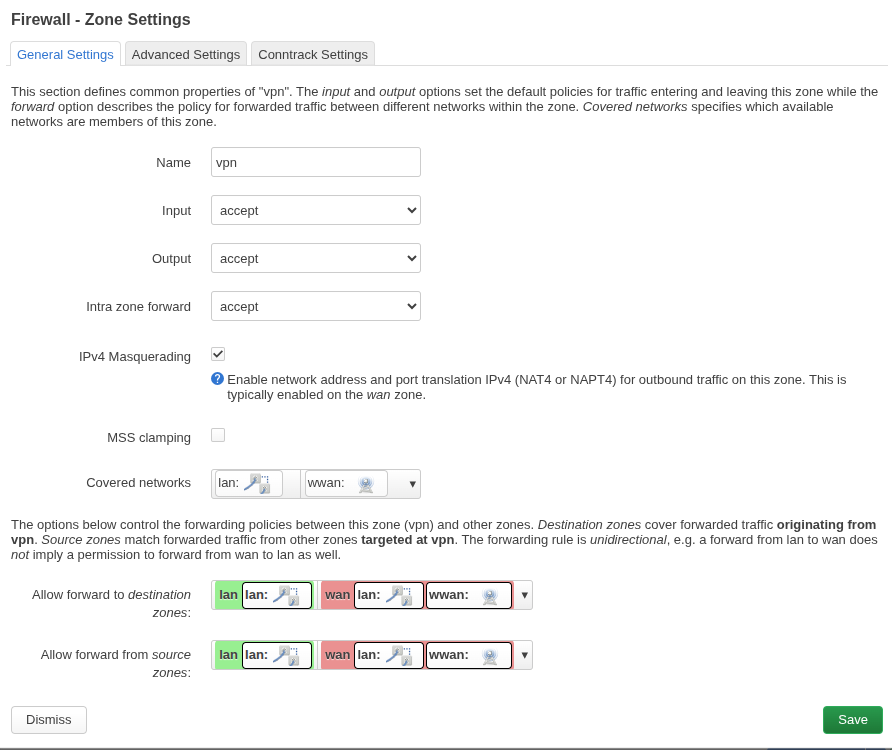
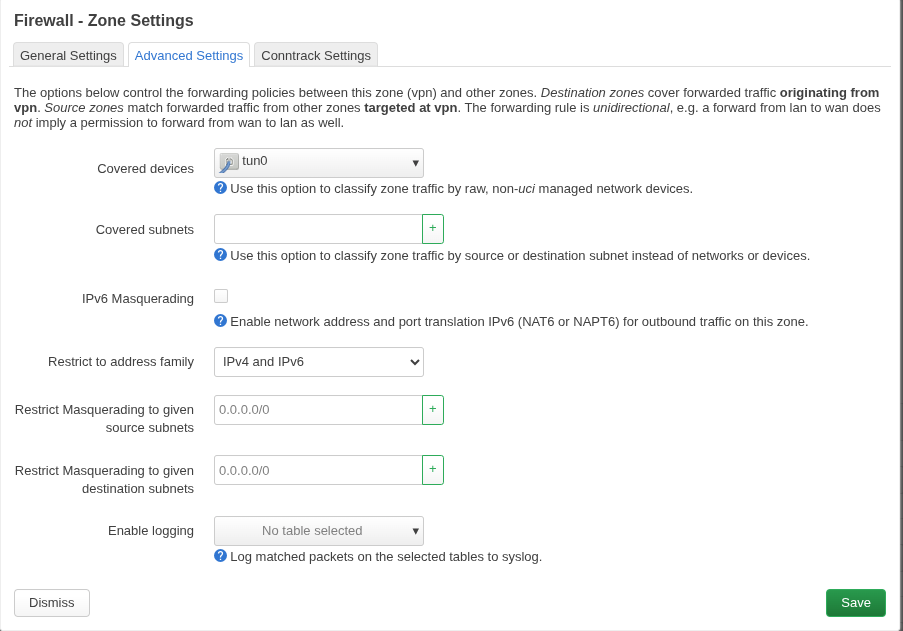
  • Zone – Add

Example (/etc/config/firewall):

config zone
    option name 'vpn'
    list network 'vpn'
    option input 'ACCEPT'
    option output 'ACCEPT'
    option forward 'ACCEPT'
    option masq '1'
    option mtu_fix '1'

config forwarding
    option src 'lan'
    option dest 'vpn'

And define the network:

config interface 'vpn'
    option proto 'none'
    option device 'tun0'

Then restart:

/etc/init.d/network restart
/etc/init.d/firewall restart

Run this on OpenWrt:

tcpdump -ni tun0 icmp

Then, from your laptop:

ping 192.168.0.1

  • Static route
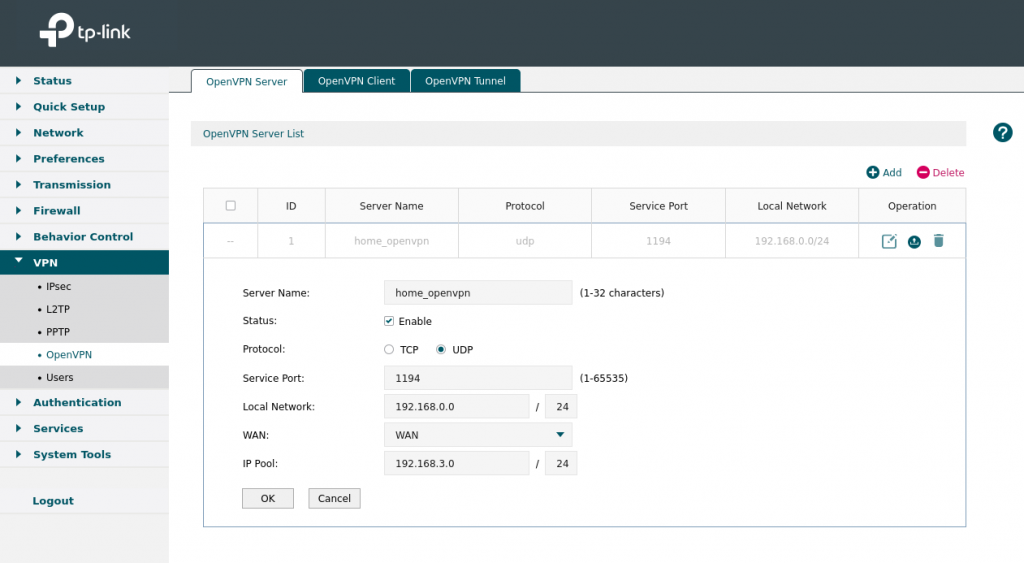
  • Install openvpn
opkg install openvpn-openssl luci-app-openvpn
opkg install openvpn-easy-rsa
/etc/openvpn/client.ovpn

/etc/init.d/openvpn enable
/etc/init.d/openvpn start

/etc/init.d/openvpn status

logread -f openvpn

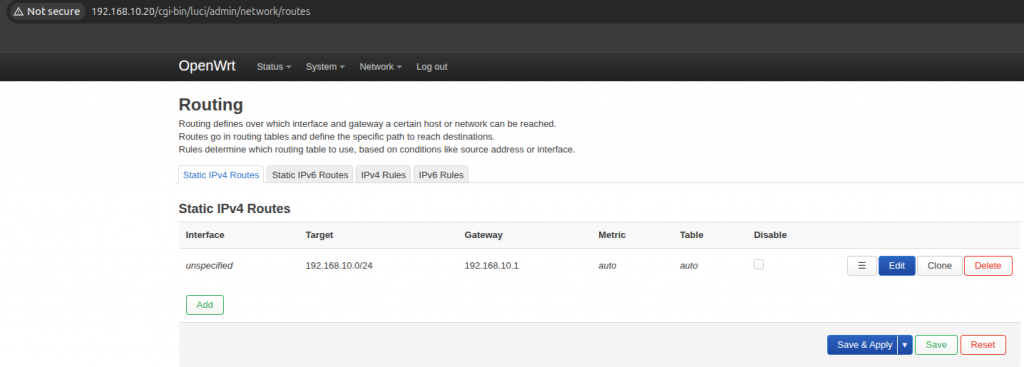
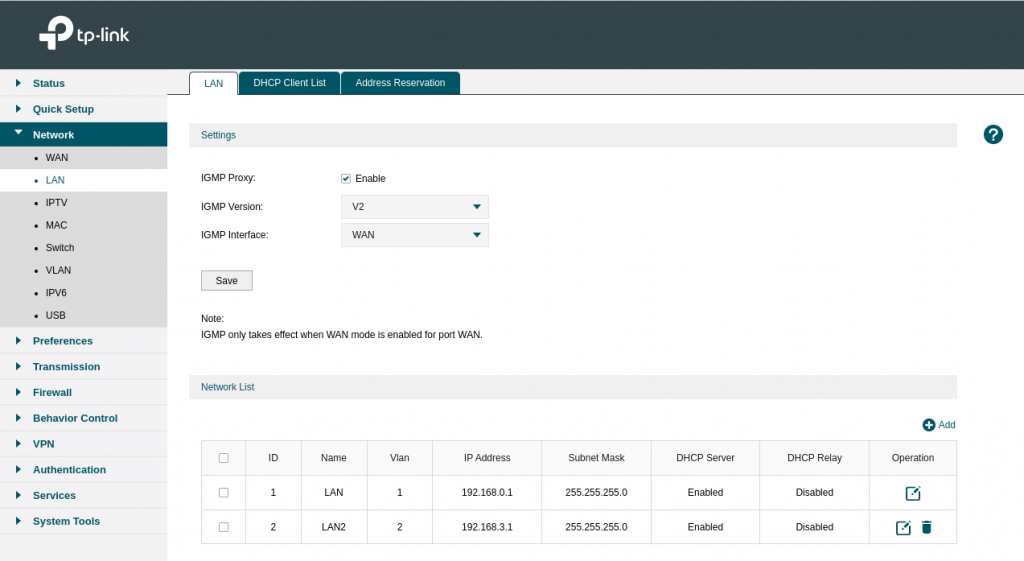
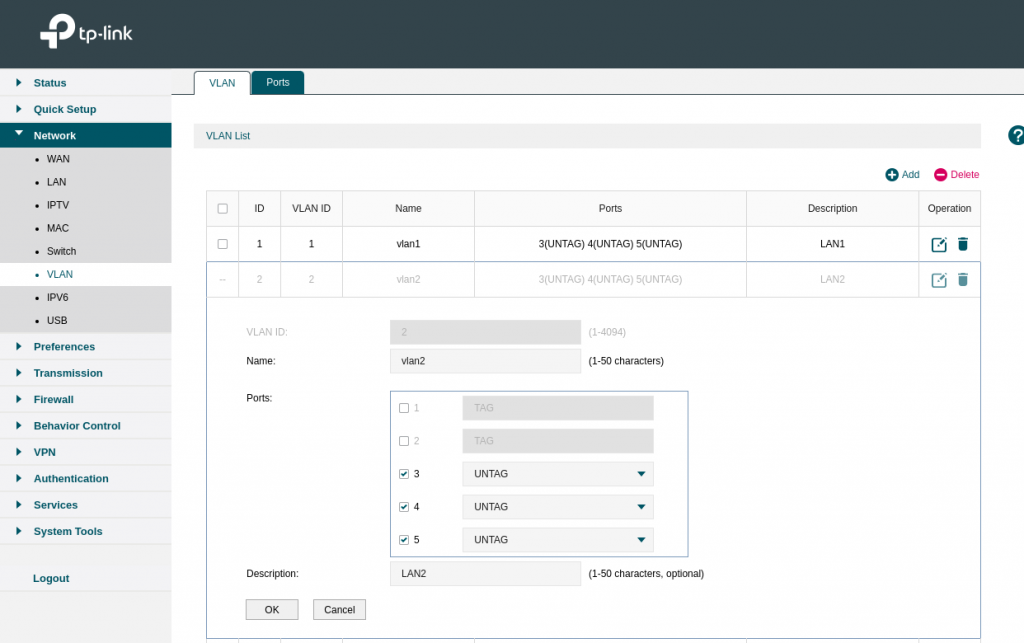
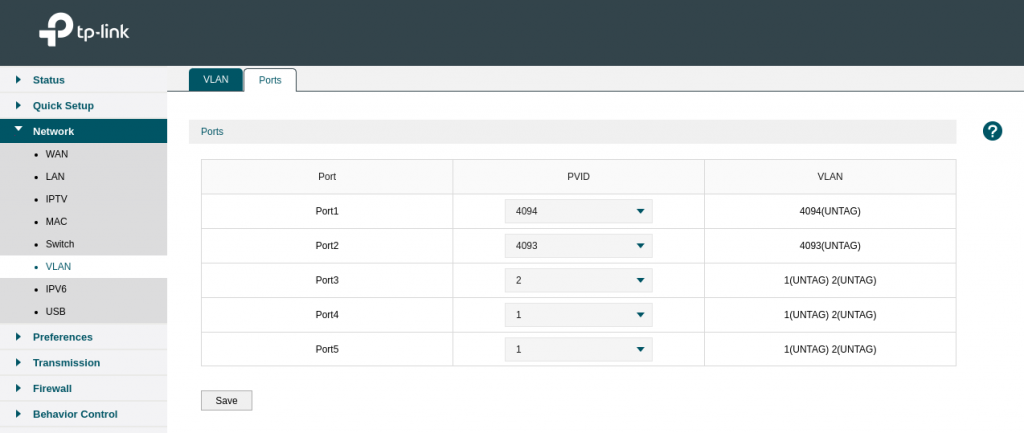
Openwrt and local router static route

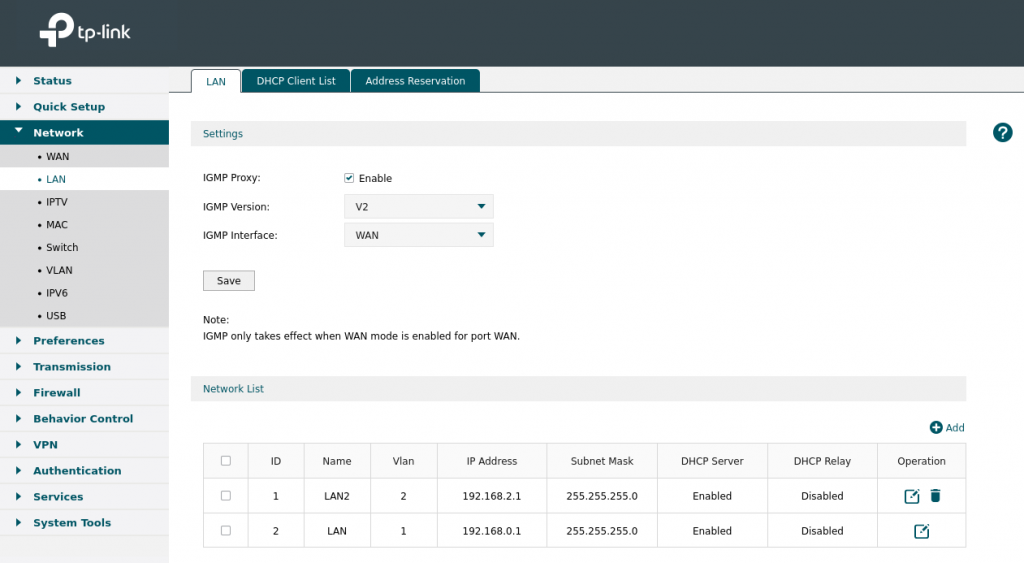
  • static route on wifi router
  • static route on openwrt
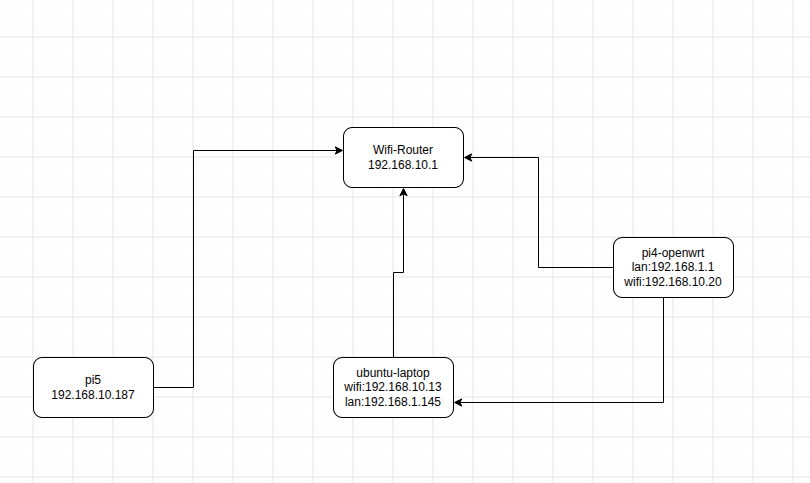
  • network digram
  • Now i can do ssh from pi5 to ubuntu-laptop on 192.168.1.145 even when i disconnected form wifi on ubuntu-laptop.
root@lp-arm-5:~# ssh root@192.168.1.145 
root@192.168.1.145's password: 
Welcome to Ubuntu 24.04.2 LTS (GNU/Linux 6.17.0-14-generic x86_64)

 * Documentation:  https://help.ubuntu.com
 * Management:     https://landscape.canonical.com
 * Support:        https://ubuntu.com/pro

Expanded Security Maintenance for Applications is not enabled.

376 updates can be applied immediately.
364 of these updates are standard security updates.
To see these additional updates run: apt list --upgradable

89 additional security updates can be applied with ESM Apps.
Learn more about enabling ESM Apps service at https://ubuntu.com/esm

Last login: Sat Jul 25 18:59:08 2026 from 192.168.10.118
raspberry pi 4 wifi setup using command line only – bash

  • find the wifi adaptor name
lshw

ls /sys/class/net

it was wlan0 in my case

  • edit /etc/netplan/50-cloud-init.yaml
network:
    ethernets:
        eth0:
            dhcp4: true
            optional: true
    version: 2
    wifis:
        wlan0:
            optional: true
            access-points:
                    "SSID-NAME":
                            password: "your_password"
            dhcp4: yes
  • Test the config
netplan try
netplan --debug try

This command will make the above changes for 120seconds if anything wrong it will be reverted back. OR you can hit Enter to make the changes.

  • apply config
netplan generate 
netplan apply
#enable wifi module

modprobe brcmfmac

#disable
modprobe -rv brcmfmac


nano /etc/modprobe.d/raspi-blacklist.conf

blacklist brcmfmac
blacklist brcmutil
  • Stop wifi without reboot
#disable
rfkill block wifi


#enable
rfkill unblock wifi
  • Using NMCLI
nmcli d

nmcli d wifi list

nmcli d wifi connect my_wifi password <password>

#### with BSSID
root@lp-arm-3:~# nmcli device wifi list
IN-USE  BSSID              SSID            MODE   CHAN  RATE        SIGNAL  BARS  SECURITY  
        xx:06:C3:CD:57:xx  TP-Link_123    Infra  153   270 Mbit/s  100     ▂▄▆█  WPA2      
*       xx:06:C3:CD:57:xx  TP-Link_123    Infra  2     130 Mbit/s  93      ▂▄▆█  WPA2 

====================
nmcli d wifi connect xx:06:C3:CD:57:xx password PASSWORD

More : https://raspberrypi.stackexchange.com/questions/108636/setting-wifi-up-via-the-command-line-ubuntu-server-18-04-4-lts-raspberry-pi-4

https://huobur.medium.com/how-to-setup-wifi-on-raspberry-pi-4-with-ubuntu-20-04-lts-64-bit-arm-server-ceb02303e49b

https://ubuntu.com/core/docs/networkmanager/configure-wifi-connections